What is Automation?
The Automation feature allows you to automatically send messages or trigger actions when specific events occur in the system, without any manual intervention.
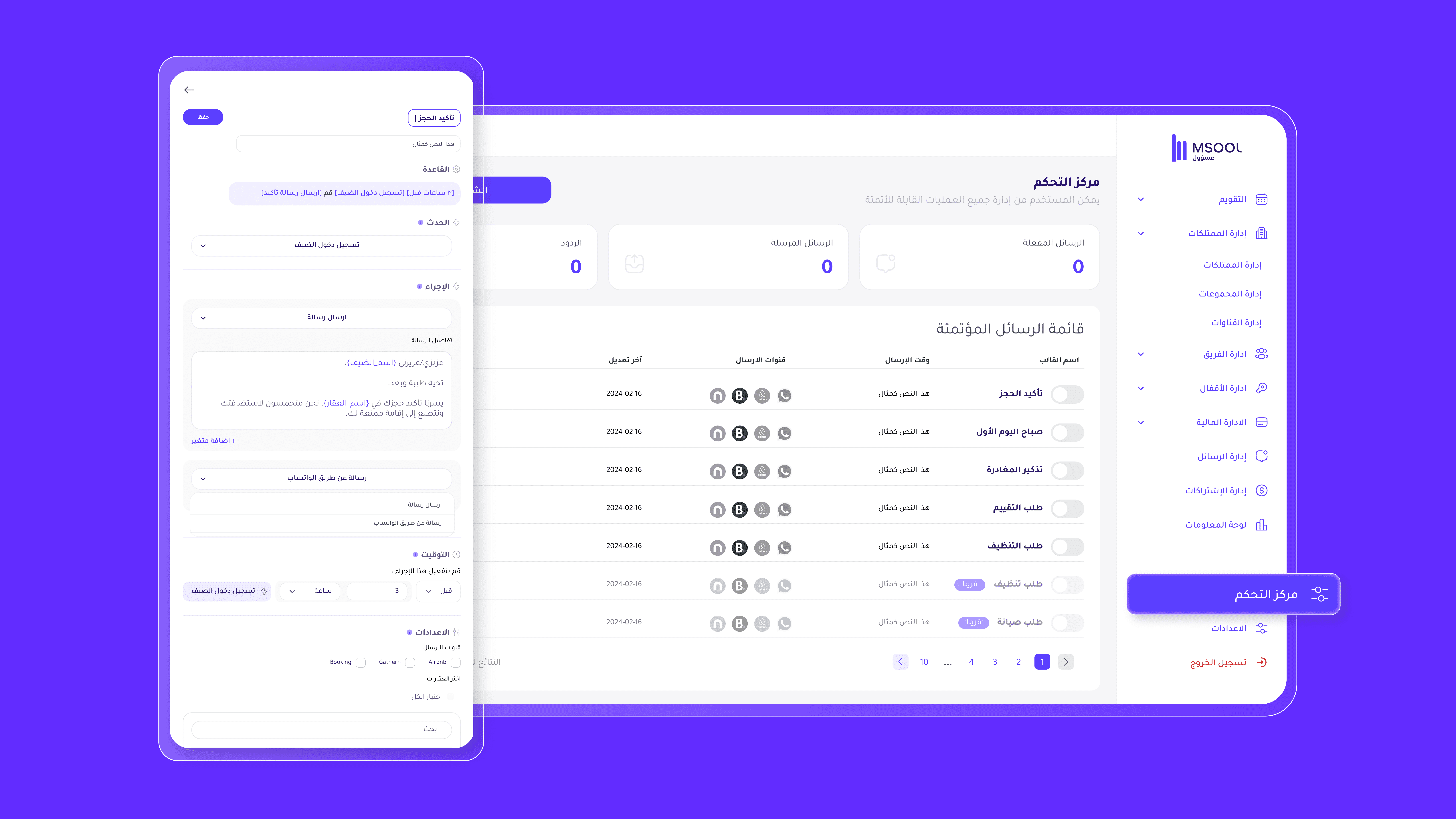
Automation works by selecting an event (such as a new booking or check-in), then defining the message content, timing, and the channels through which it will be sent.
How to access Automation
From the sidebar in the dashboard, select Automation
You will see a page displaying a list of automated messages
Next to each message, click the three dots (⋮) to open options
Select Edit to open the automation settings
Automation Page Fields Explained
1. Event Field
In this field, you select the event that triggers the automation.
The event is what causes the system to send the message or perform the action automatically.
Available events:
New Booking – Triggered when a booking is confirmed
Check-in – When the guest enters the property
Check-out – After the guest leaves the property
Inquiry Request – When a potential guest sends an inquiry
Booking Cancellation – When a guest cancels their booking
Booking Modification Request – When a guest requests changes to booking dates or details
2. Message Details & Variables
In this field, you can write the message that will be sent automatically when the selected event occurs.
You can customize the message and insert smart variables that automatically populate booking details.
Available variables:
Guest Name: {guest_name}
Property Name: {property_name}
Check-in Date: {checkin_date}
Check-out Date: {checkout_date}
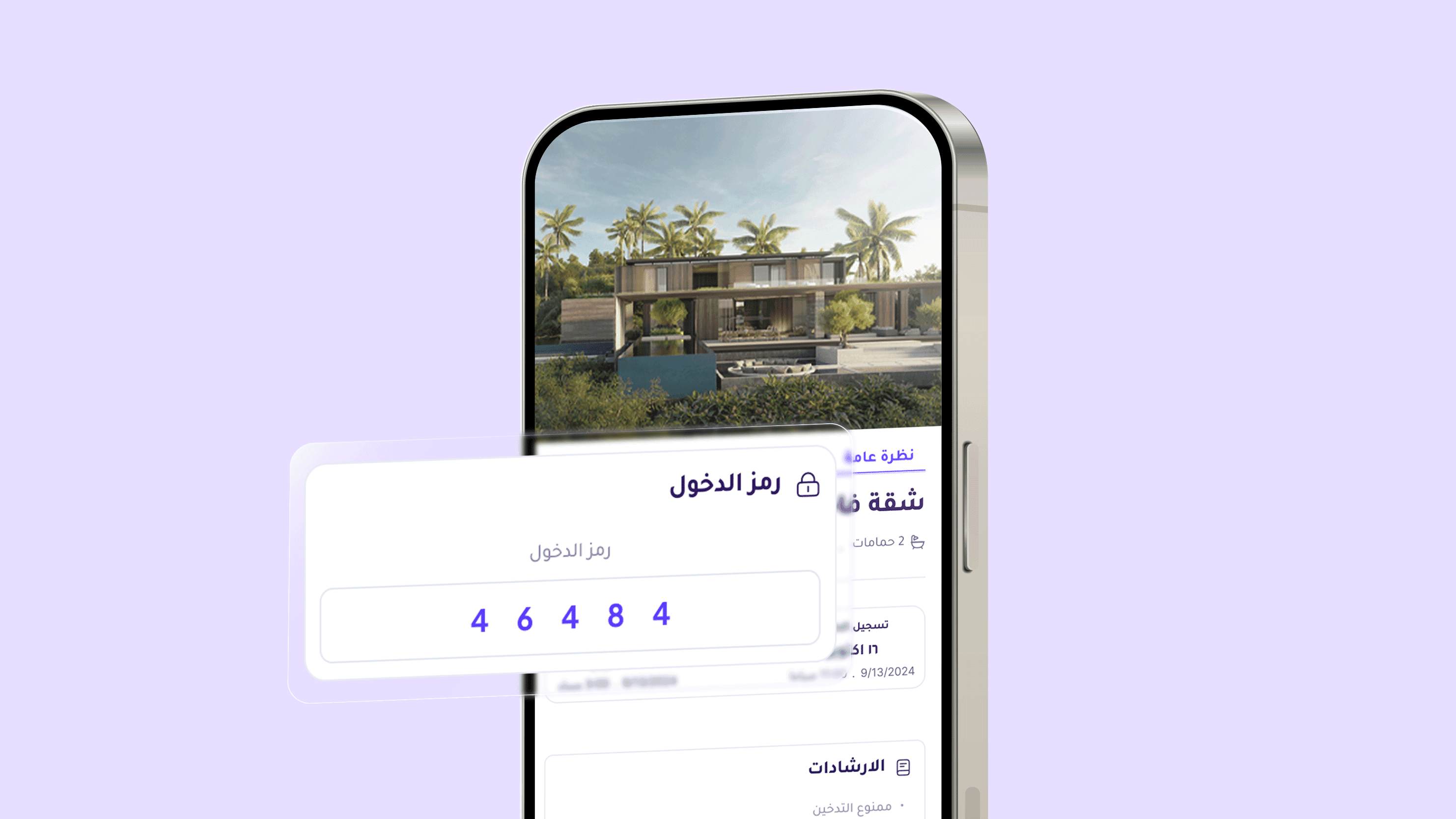
Lock Code: {lock_code}
Welcome Guide: {welcome_book}
Example message:
Hello {guest_name} 👋
Your booking at {property_name} from {checkin_date} to {checkout_date} has been confirmed.
We wish you a pleasant stay 🌿
You can find the access details here: {welcome_book}
3. Timing Field
This field allows you to control when the action is executed in relation to the selected event.
You can choose to send the message:
Before the event (e.g., 3 hours before check-in)
After the event (e.g., 1 hour after check-out)
Set the delay in minutes, hours, or days as needed
Examples:
10 minutes after booking
24 hours before check-in
1 hour after check-out
4. Settings Field
This field allows you to choose where the message will be sent and which properties the automation will apply to.
It includes two main sections:
Sending Channels
Select the channels from which the message will be sent, such as:
Booking
Airbnb
WhatsApp (if available)
Properties
Select the properties or units where this automation will apply — either all units or specific ones.
This ensures the message is automatically sent to the correct channels and properties without any manual intervention.