What is the Unified Calendar?
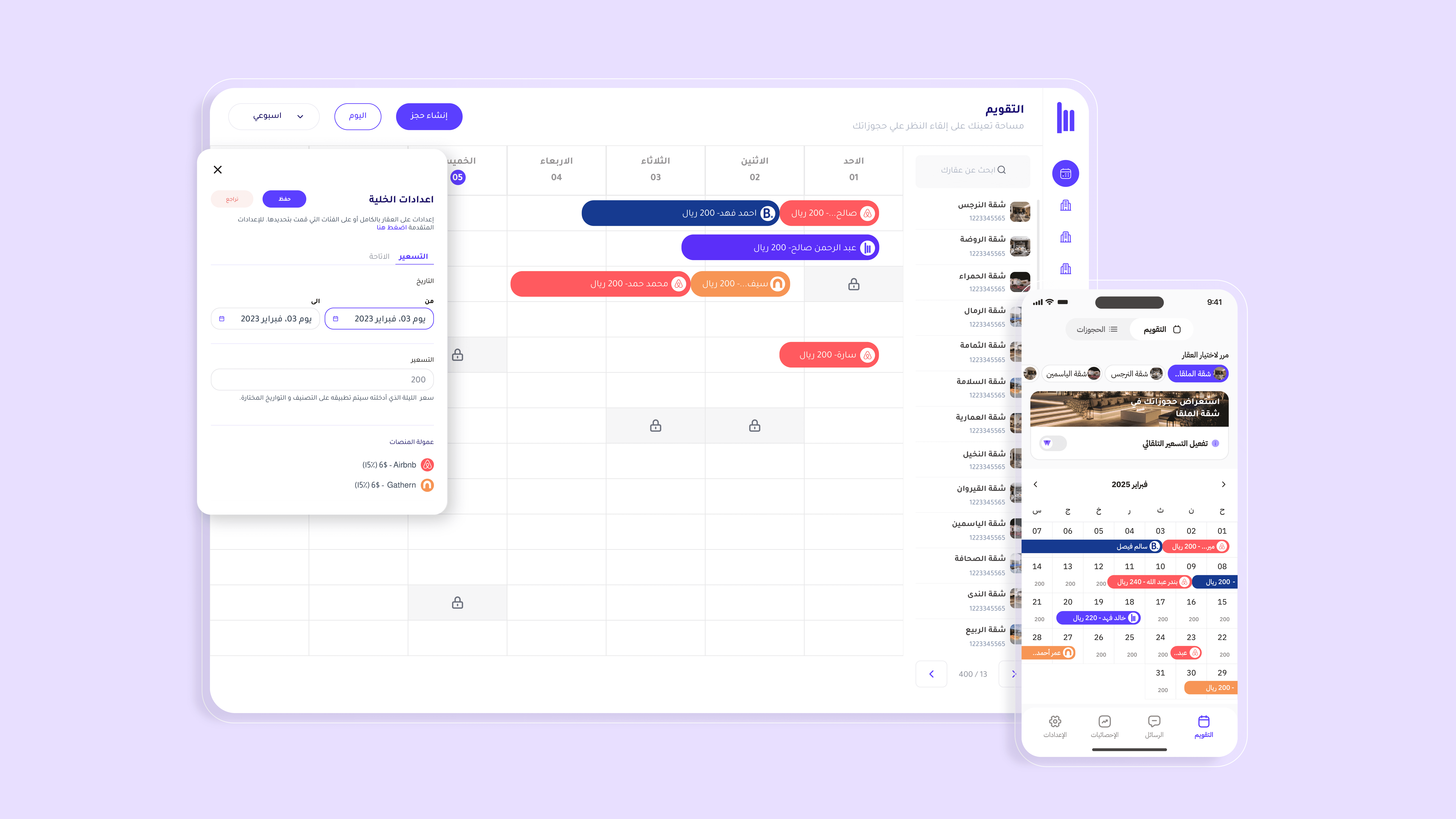
The Unified Calendar gives you a complete, centralized view of all your properties and reservations across multiple booking channels in one place.
It allows you to manage:
Pricing
Availability
Reservations (automatic & manual)
All with instant, automatic synchronization across every channel connected to the Msool platform.
What can you do with the Unified Calendar?
The Unified Calendar gives you full control over your daily rental operations through three core features:
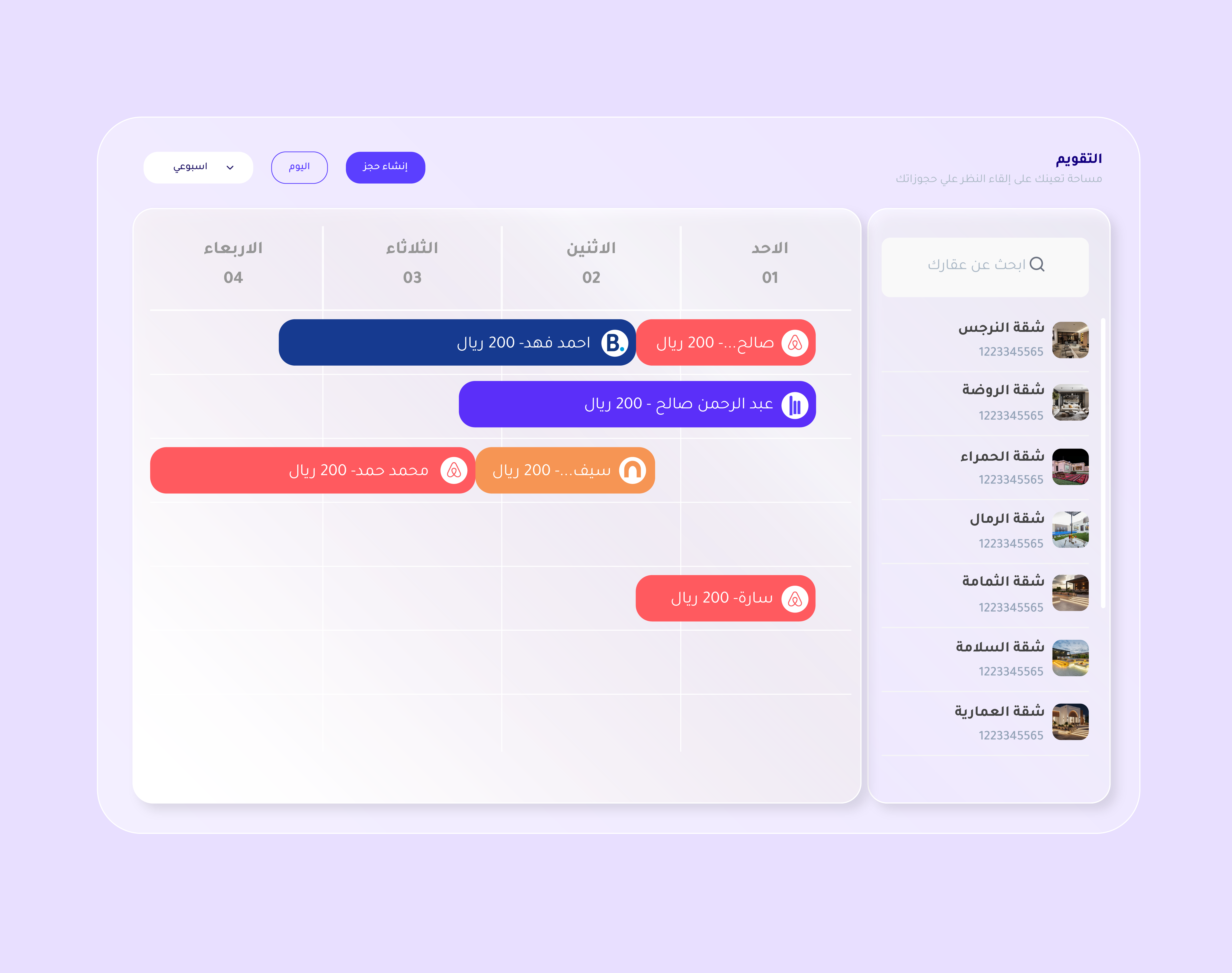
1. Update Pricing
What is this feature?
This feature allows you to update property prices directly from the calendar and automatically apply the changes to all connected channels in just one step.
It is designed to give property owners full flexibility to manage daily or seasonal pricing without logging into each platform separately.
Benefits
Flexible pricing: Full control over daily and seasonal rates from one place
Instant sync: Any update is reflected immediately across all channels
Fewer errors: Prevents pricing discrepancies between platforms
Smooth experience: Simple and clear pricing edits directly from the calendar
How to update pricing
Go to the Calendar page
Select the property and date you want to update
From the side panel, click Pricing
Enter the new price
Click Save at the top of the page to apply the update across all channels
2. Manual Booking
What is this feature?
This feature allows you to create a manual booking for any property, with automatic synchronization across all connected channels.
It is ideal for:
Direct bookings
Returning guests
Bookings without platform commission
Benefits
Easy management of direct bookings: No intermediaries or extra fees
Automatic synchronization: Manual bookings appear instantly across all channels
Flexible payment options: Enter payment details manually or mark the booking as unpaid
Clear organization: View both manual and channel bookings in one unified calendar
How to create a manual booking
Go to the Calendar page
Click Manual Booking at the top of the screen
Select the property and choose the check-in and check-out dates
Enter the booking price and click Save
Fill in the guest details (name, phone number, email)
Click Confirm Booking
3. Update Availability
What is this feature?
This feature allows you to control property availability by setting specific dates as available or unavailable.
Any change is automatically synchronized across all connected channels on the Msool platform.
It is commonly used for:
Maintenance periods
Personal use
Temporary closures
Benefits
Full control: Easily manage available and unavailable dates
Smart synchronization: No need for manual updates on each platform
Operational flexibility: Perfect for special cases and temporary blocks
Clear visual overview: Each day’s status is clearly displayed in the calendar
How to update availability
Go to the Calendar page
Select the property and date you want to update
From the side panel, click Availability
Choose the date range (From / To)
Select the appropriate status (Available / Unavailable)
Click Save to apply the changes across all channels